Overview
For the past 3 months, I've worked to leave Squarespace behind. I'd used it on and off for years, but it was limiting in what I wanted. I had tried wordpress too but that also seemed rather limiting and costly given any specific features I wanted were behind pricier plans.
With the abundence of new websites being created using AI, I decided it was my turn to make my own site.
The Plan
- Replace my Squarespace subscription with an Anthropic subscription.
- Have fun learning how to create a website.
- Learn how to use web test tools.
- Learn how to implement accessibility.
Foundations
I'm not a web developer by trade, so I knew setup would be complicated. I spent time pinning down scalability, accessibility, and performance principles with Claude in order to establish specification documents and the technical stack we would use.
Core Principles
- No frameworks, no build tools, no subscriptions
- Accessible by default — WCAG AA minimum on every decision
- Localization-ready from the start using Noto Sans
- Performant — static files only
- Scope-disciplined — ship simple, iterate later
Specs and Stack
| Layer | Tool | Notes |
|---|---|---|
| Design | Figma | Utilize MCP to provide a bridge between Figma and Claude Code |
| Code Editor | VS Studio | With Live Server extension for local preview |
| Version Control | GitHub | Repository to ensure safe iteration |
| Infrastructure | HTML, CSS, JavaScript | Plain — no frameworks or preprocessors |
| Hosting | Netlify | Free tier and allows multiple environments to test and secure release |
| Testing | Playwright | Integrate automated testing |
Markdown Files
In earlier AI experiments, the models sometimes made things up or went off on their own without clear direction. Since then, I've read enough cautionary tales and workflow improvement articles from developers that informed how I would go forward with this project.
I moved the discussion out of a singular chat and established a project. Within the project, I could ensure it contained context and documentation between chats. We created the Markdown (MD) files which would provide the support pillars.
Over time, the docs grew to: avoid repeat mistakes, set process guardrails, save effort on tasks I could check myself, track changes, and record design decisions.
I planned the architecture in Claude, then built it and ran Git in Claude Code inside Visual Studio. The docs were utilized and referenced via prompts and were the only thing that had to survive the handoff between the two.
- REFERENCE.md for project decisions and session handoffs
- DESIGN-SYSTEM.md for design tokens
- COMPONENTS.md for component specs
- PROMPT-GUIDE.md to control what context got loaded per task type
Information Architecture
My initial goal was to build the following:
- Home Page - containing selected work
- About - containing more about me and my resume
- Standard Page Template - for case studies
I decided on Color, Spacing, Motion, picked a typeface (Noto Sans) for wider localization capabilities, had a decent set of Components made in Figma and a Standard Page template all working somewhat effectively in Desktop, Tablet, and Mobile breakpoints.
When you're building a site that reflects your own principles, you get nitpicky. You start telling yourself, "this element is not good enough". This lead to me pushing back on my own rules for keeping things simple.
As a result of just having the basics - the site has taken longer than I wanted. I would see and reproduce a bug, and those bugs might have user experience issues that needed new solutions designed and tested. It also went through multiple partner reviews with my wife, who had some solid constructive criticism.
The Archive
The Archive is made of multiple key components:
- The Database
- Entries and their Tags
- Search
- Filter Drawer
The Database
To get around using a more complicated content manager, I opted for a lean singular static Json file. Every entry is referenced and Javascript fetches all entries or matches based on user search, sort and filtering. It is fast and efficient for what I need right now, but may need expansion later. As it stands, I don't have hundreds or thousands of entries to worry too much about performance but as a precaution, I made sure to implement a display cap.
Entries and Tags
Each entry contains a Hidden Primary 'Type' Tag (Work, Thoughts, etc.) - as well as Secondary 'Topic' Tags (Quality Assurance, User Experience, etc.). While the Primary Tags are hidden on the Entry Pages and their representative Card on the Archive - they both can be utilized by a user by accessing the Filter Drawer.
Search
While search is fully functional, it is currently dormant on the Archive. The reason for this is due to how I initially implemented the Search across devices.
Initially on Desktop it was at the top of the page and if the user scrolled down, the Filter Drawer would appear. At the time, Search and Filters were all within the Drawer. This Drawer was also functional across Tablet and Mobile devices.
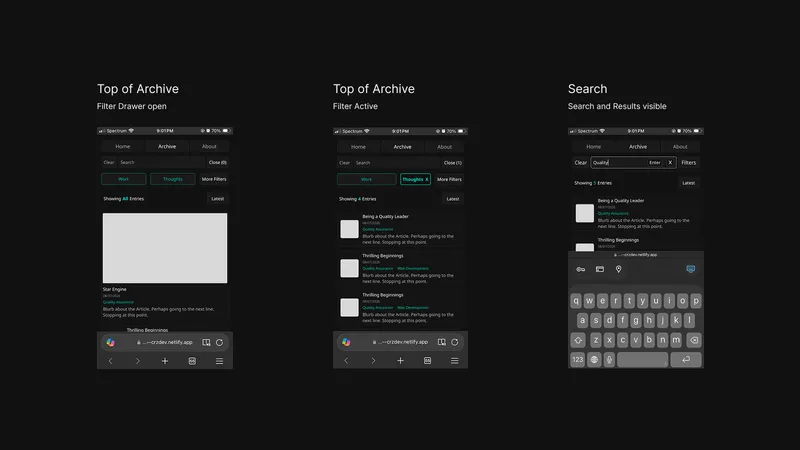
Now at the time, I was testing primarily through the Live Server via my Microsoft Edge Browser, shifting the response size based on device aspect ratios via the inspector. Judge me for using Edge all you like, but Edge's accessibility is top notch and it implemented Split Window prior to - and wayyyy better than - Chrome or Firefox...But things were working fine and as I had intended. Search functioned, Filters worked. My compact drawer was doing well...that is until I got out of the house.
After being proud of my implementation, I had set off biking to the store to pick up groceries. I was almost at the store when a gust of wind hit me in the face and provided me with the realization that I had forgotten to account for Virtual Keyboards.
As I picked out a cabbage, the produce sprinkler hit me with cold water. It almost washed away the embarrassment of forgetting something I see every day

Now back home, after putting away the groceries - I pushed changes and tested on my iPhoneSE2. (Again, judge me all you like, but I refuse to upgrade to a giant new impractical rectangle that doesn't fit into my pockets.)
As I tested, I saw the major issues I knew would be present.
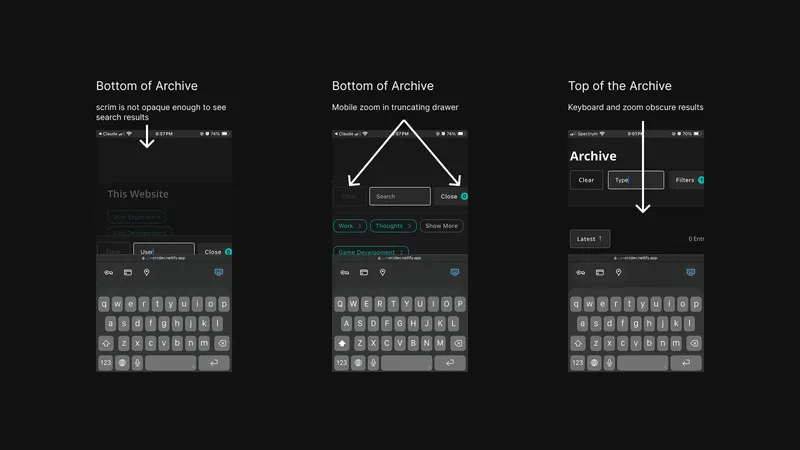
Issue #1: the virtual keyboard envelops half of the screen space. And depending on the browser and its interpretation of fields - it also uses extra space.
Issue #2: On many mobile browsers and devices, there is an automatic zoom that triggers to ensure the user can see their input in the search field. As a result of my implementation - the entries would be further obscured
While I fought for a day to redesign variants of the current implementations - I ultimately made the decision to feature flag search until I find a cleaner solution and I had other issues to solve, features to implement, and bugs to fix. I went for another walk later that day to let it all go and trust myself enough to figure it out another day.
Filters
After removing the field, I was able to retain the structure and instead of a search field, I replaced it with text indicating the purpose of the drawer.
As I anticipated tag growth, I made sure the drawer would scale. Pagination was built into the drawer to ensure the user could parse the potential plethora of tags. If the user wants to Filter by a specific Primary Tag - the applicable entries with associated secondary tags will display, and the unrelated tags will be hidden.
Getting the Drawer to feel good across devices took some tweaking but as it sits right now - it's a solid little drawer.
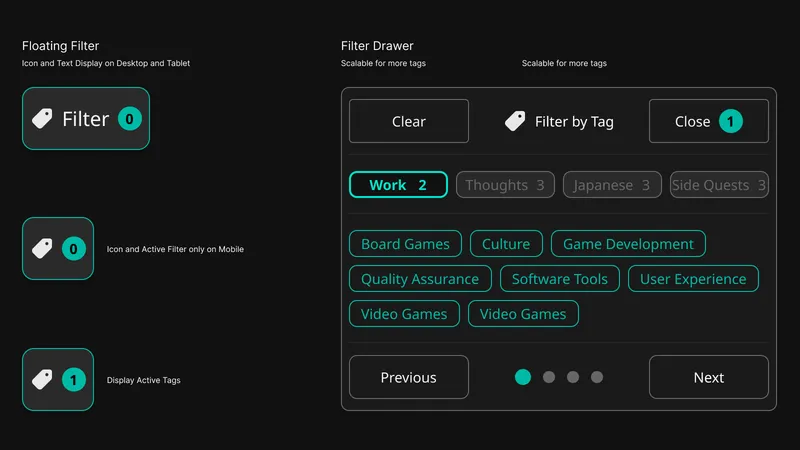
Table of Contents
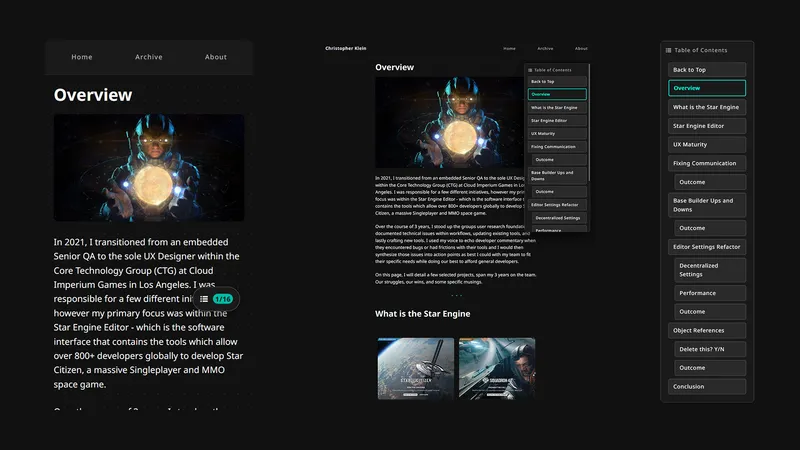
The next major implementation was the Floating and Collapsible Table of Contents.
When I had a Squarespace, I wanted this feature but I was restricted from using a script another Squarespace user had written to provide one for my site, as Code Injection was of course in a higher paid tier. This became a must for this site as I now had full control. I wanted the viewers of any entry to feel like they could navigate up and down the page with ease.
Accessibility
Last but not least, is one of the Core Principles of the site: Accessibility.
As it stands right now, my site has the following accessibility implemented:
Vision
- Alt text describing actual image content on every image sitewide
- WCAG AA color contrast on all text, verified across every page
- Visible focus outline on every interactive element, including images and cards
Motor
- 100% keyboard operable. Every feature, including the pinch/zoom/pan image viewer, works without a mouse (WCAG 2.5.1, 2.5.7)
- No feature requires a precise drag or multi-touch gesture. Every gesture has a button or key equivalent
- Skip-navigation link past the Table of Contents, straight to article content
Cognitive
- Reduced-motion respected sitewide. If a user's device requests less motion, every animation and transition turns off automatically
- Consistent heading structure and unique link labeling on every page
Hearing
- No audio or video content currently exists on the site, but when I add, this will get addressed.
Performance
Performance was crucial for me. I've seen many websites over the years be so flashy it hurts and I just click out of it instantly. Between ads and images - I wanted my site to be as fast as I could make it.
- Lighthouse Accessibility: 100 across every page
- WAVE: 9.9/10, 0 errors - I'm working through Warnings right now related to redundant links
- Reduced Image weight by compressing pngs to webp format. Thumbnails are compressed low res for fast lazy loads, and then when you enlarge the image, they bump up to higher resolution.
- Mobile load speed: 7.9s → 4.7s
The Future
As time goes on, I will continue to maintain, verify, and introduce further accessibility options to the site. If you are reading this and observe an issue or lack of accessibility - please contact me using the information below.